
How to Categorize Architecture Firm Expenses in QuickBooks
A practical, data-backed guide to controlling costs and automating expense workflows.
To accurately track and categorize your architecture firm's expenses in QuickBooks, you'll need to understand which expenses are deductible and how to classify them according to IRS guidelines. This includes setting up your QuickBooks Chart of Accounts effectively to ensure accurate financial tracking and tax preparation. architecture expense management for under $10/user (2026). For a complete overview, see our expense management guide.
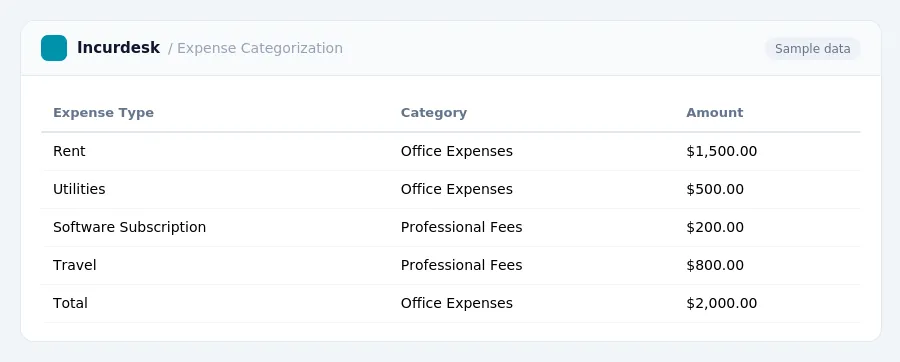
Determine Which Expenses Are Tax-Deductible
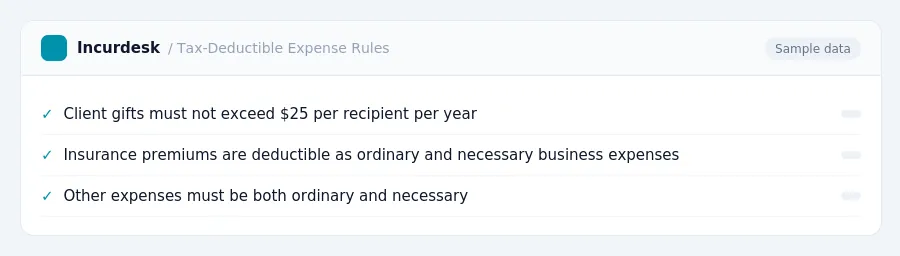
Business expenses must be both ordinary (common and accepted in your industry) and necessary (helpful and appropriate for your business) to be tax-deductible.
Client gifts are limited to $25 per recipient per tax year.
Premiums, such as insurance, are typically deductible as ordinary and necessary business expenses. For architecture firms, these can range from $5,000 to $30,000 annually.
Classify Expenses According to IRS Guidelines
The IRS has specific guidelines for classifying expenses, which are crucial for accurate financial tracking and tax preparation. To classify expenses according to IRS guidelines, follow these steps:
- Identify the type of expense. Expenses can be categorized as either business use of a vehicle or non-vehicle related expenses, such as supplies, equipment, or rent.
- You can also deduct actual expenses, such as gas, maintenance, and insurance, but the standard mileage rate is often more convenient.
- For non-vehicle related expenses, consider the following:
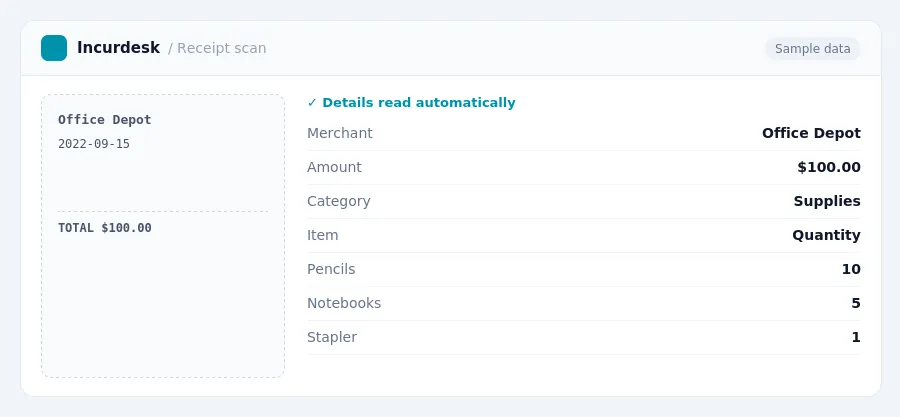
- Supplies, such as office materials and equipment, can be deducted as a business expense.
- Equipment, such as computers and software, can be depreciated over time or deducted as a business expense.
- Rent and utilities for your office space can be deducted as business expenses.
- Keep accurate records of your expenses, including receipts, invoices, and bank statements. This will help you to accurately classify your expenses and support your tax deductions.
- Consult the IRS guidelines and your tax professional to ensure that you are classifying your expenses correctly.
The IRS also offers a tax credit for energy-efficient buildings, which can be calculated based on the square footage of the building and the percentage of energy savings achieved.
Set Up the QuickBooks Chart of Accounts Effectively
- Start by reviewing your existing QuickBooks Chart of Accounts to ensure it accurately reflects your business expenses. Take this opportunity to clean up any duplicate or unnecessary accounts, as this will make it easier to categorize your expenses later on.
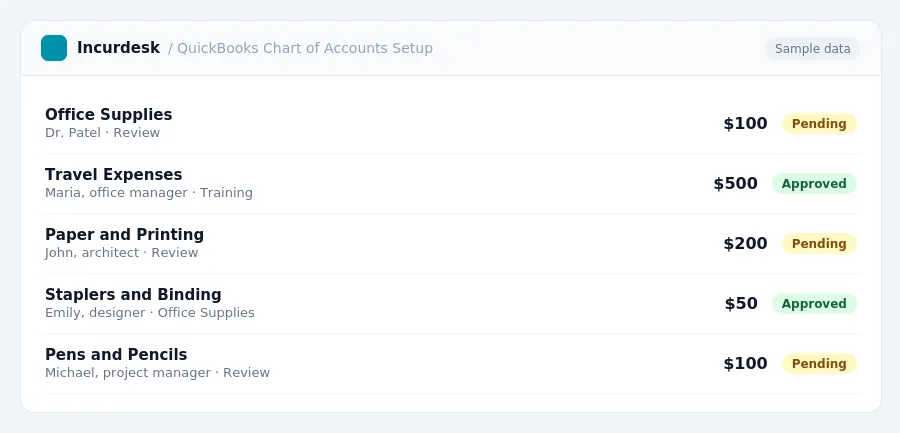
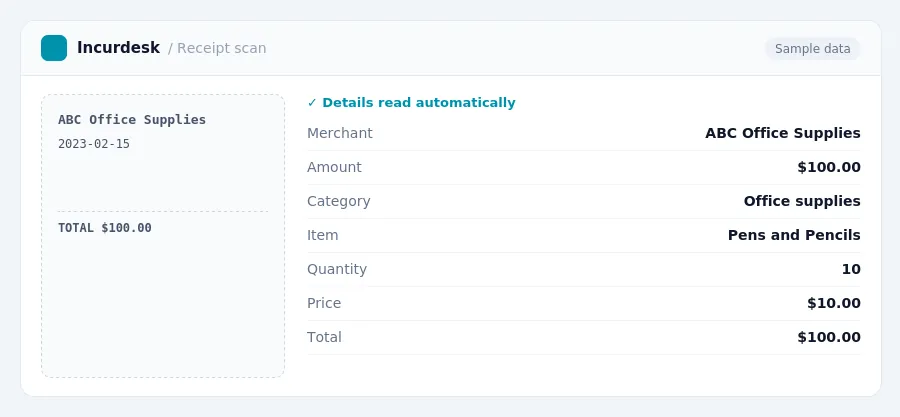
- Consider setting up sub-accounts within your main expense categories to provide more detailed tracking. For example, instead of having a single "Office Supplies" account, you could have sub-accounts for "Paper and Printing," "Pens and Pencils," and "Staplers and Binding." This will allow you to easily track specific expenses and make it simpler to categorize them.
- Make sure to set up accounts for any specialized expenses, such as travel or training expenses, that may not fit into traditional categories. This will ensure that you're capturing all of your business expenses and making it easier to categorize them later on.
- Review your Chart of Accounts to ensure that it aligns with your business operations and accounting needs. If you're unsure about any of the accounts or how they should be set up, consider consulting with an accountant or financial advisor for guidance.
Once you've set up your Chart of Accounts, you'll be able to easily categorize your expenses in QuickBooks and ensure accurate financial tracking and tax preparation.
Categorize Expenses in QuickBooks
QuickBooks allows you to customize your expense categories. Create a list of key categories, such as:
- Advertising
- Vehicle expenses
- Employee wages
- Rent
- Utilities
- Office supplies
- Legal services
- Travel
- Insurance
Create a new expense account in QuickBooks for each category you listed. For example, if you have a category for "Advertising," create a new expense account called "Advertising" in your Chart of Accounts.
When entering expenses into QuickBooks, select the correct category from the drop-down menu. This will ensure that your expenses are accurately categorized and easily trackable.
For example, if you have a utility bill that includes both electricity and water expenses, you can categorize the entire bill under the "Utilities" category.
Verify and Review Your Expense Categorization
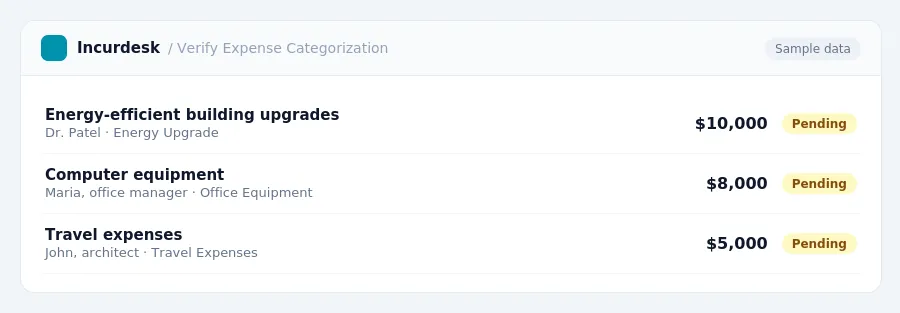
After setting up your QuickBooks Chart of Accounts and categorizing your expenses, it's essential to verify and review your work to ensure accuracy. Start by checking your expense categorization against IRS guidelines to ensure compliance. You can also review your expense records to ensure that you're taking advantage of available tax deductions.
For example, if you've purchased qualifying property, such as equipment or computers, in 2026, you may be eligible for an immediate expense deduction of up to $2.56 million. However, the deduction phases out when total qualifying purchases exceed $4.09 million. Be sure to review your records to ensure you're meeting these requirements.
Additionally, if you've invested in energy-efficient building upgrades, you may be eligible for a tax deduction based on the energy savings achieved.
Steps to Verify and Review Your Expense Categorization:
- Verify that you're meeting the requirements for immediate expense deductions, such as purchasing qualifying property.
- Calculate the energy savings achieved from energy-efficient building upgrades to determine your tax deduction eligibility.
Keeping this simple: Incurdesk exports your expenses as a CSV your accountant can import into QuickBooks. It is built for small architecture teams. Try it free.
Stop losing 4+ hours a week
30-day free trial · No credit card · Setup in 15 minutes