
Tracking Client Billable Expenses at an Accounting Firm
A practical, data-backed guide to controlling costs and automating expense workflows.
Small accounting businesses need to track client billable expenses accurately to ensure proper reimbursement and tax compliance. To streamline accounting expense management for under $10/user (2026), consider implementing a system that allows for easy tracking and categorization of expenses, such as mileage, meals, and travel costs.
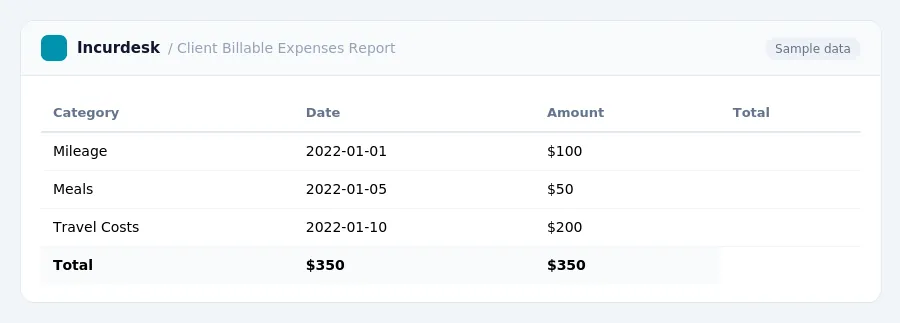
Define Business Connection and Expenses
- Determine what expenses are billable to clients. To qualify, expenses must be ordinary and necessary for the business, incurred while performing services as an employee, and directly related to the employer's trade or business. Personal expenses do not qualify. Ensure that all expenses meet these criteria before considering them billable.
- Identify the specific business connection for each expense. This means explaining how the expense directly relates to the business or client project. For example, a business meeting lunch would be considered a billable expense if it's directly related to the client project, but not if it's a personal meeting.
- Understand what types of expenses can be billed to clients. A billable expense is a project-specific cost paid by the business upfront and then charged back to the client. The cost must exist because the client exists, and the contract must permit the expense category.
- Be aware of the substantiation requirements for expenses. Itemized receipts are generally required for all expenses. For these smaller expenses, the amount, time, place, and business purpose must still be recorded.
- Keep track of business mileage driven. From July 1 to December 31, 2026, the rate increases to 76 cents per mile. Be sure to keep accurate records of mileage driven and the date it was driven.
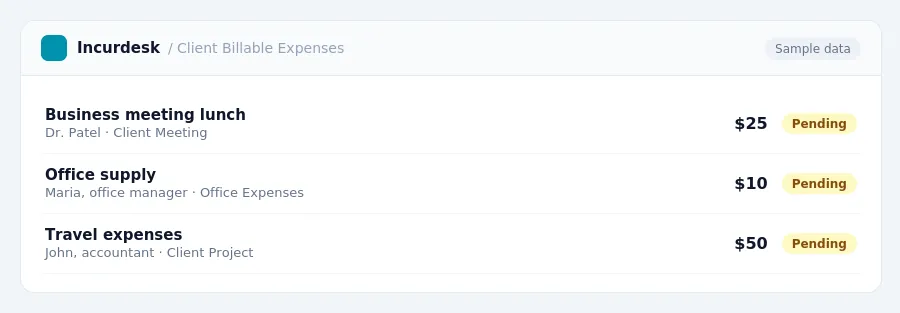
Track and Document Expenses
Tracking and documenting expenses is a crucial step in the process of reimbursing clients for business-related expenses. To ensure accuracy and compliance, follow these steps:
- Keep detailed records of business-related expenses, including receipts, invoices, and bank statements. This will help you identify which expenses are eligible for reimbursement and ensure you have enough documentation to support your claims.
- Categorize expenses into different types, such as travel, meals, and entertainment. This will make it easier to track and document expenses, and ensure that you are only reimbursing clients for legitimate business expenses.
- Use a spreadsheet or table to track expenses, including the date, amount, and type of expense. This will help you keep track of expenses over time and ensure that you are not reimbursing clients for duplicate or unauthorized expenses.
- Keep all expense records organized and easily accessible, in case of an audit or review.
- Check your state's laws regarding reimbursement of business expenses, as some states, like California and Illinois, require employers to reimburse all necessary business expenses regardless of wage level.
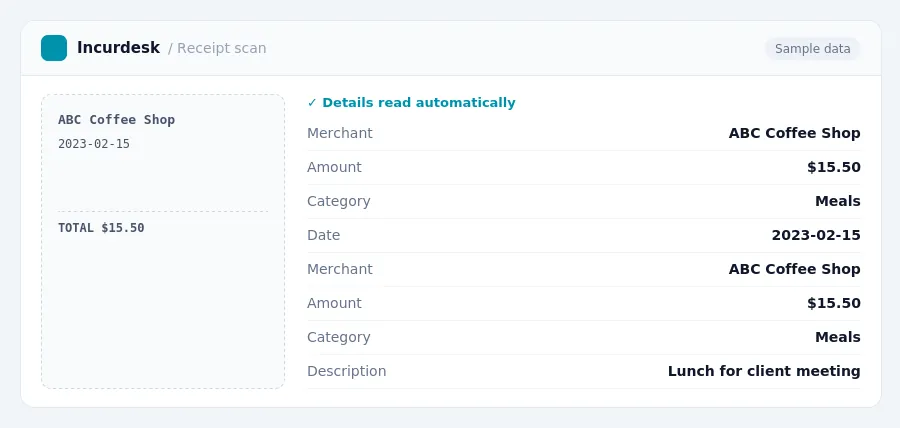
Submit Expense Reports and Reimbursements
- Submit expense reports and reimbursements within the specified timeframe. For travel expenses, this window begins on the final day of the trip.
- When submitting expense reports, ensure that the amount charged to a client to recover a cost paid on their behalf is clearly stated. This amount sits on the revenue side of the books and offsets the initial expense.
- When reimbursing employees, use the submitted expense reports to process payments. Be sure to verify the accuracy of the submitted documentation to avoid any discrepancies.
- Keep a record of all submitted expense reports and reimbursements for future reference. This will help you track and reconcile client invoices and expenses.
- Ensure that all submitted expense reports and reimbursements are properly documented and stored in a secure location. This will help you meet any potential audit requirements.
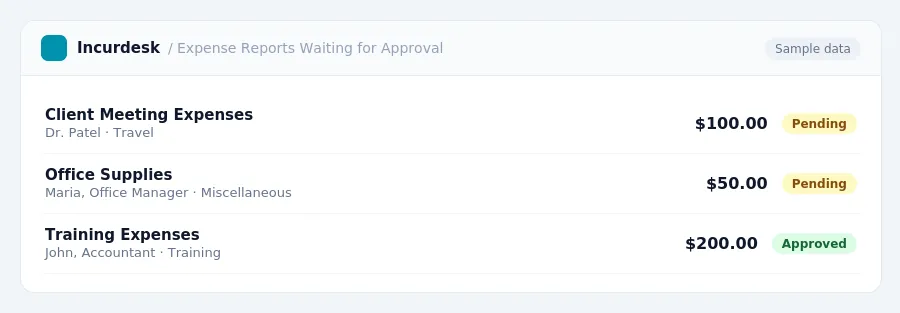
Verify and Return Excess Advances
-
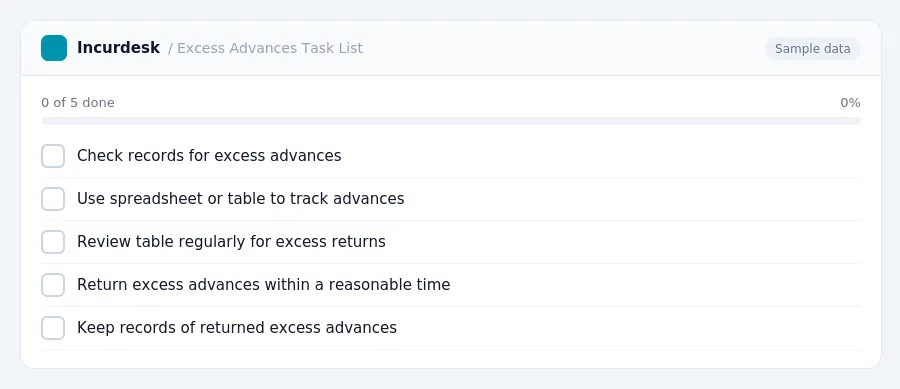
Check your records to identify any excess advances that have not been returned. You can use a spreadsheet or a table to track the advances and ensure they are returned promptly.
Here's an example table to track excess advances:
Review the table regularly to ensure excess advances are being returned within a reasonable time.
For example, if an employee received an advance of $100, you should return the excess $50 within a reasonable time, such as 30 days.
Keep records of the returned excess advances, including the date and amount returned.
Rebill Unapproved Expenses and Update Client Invoices
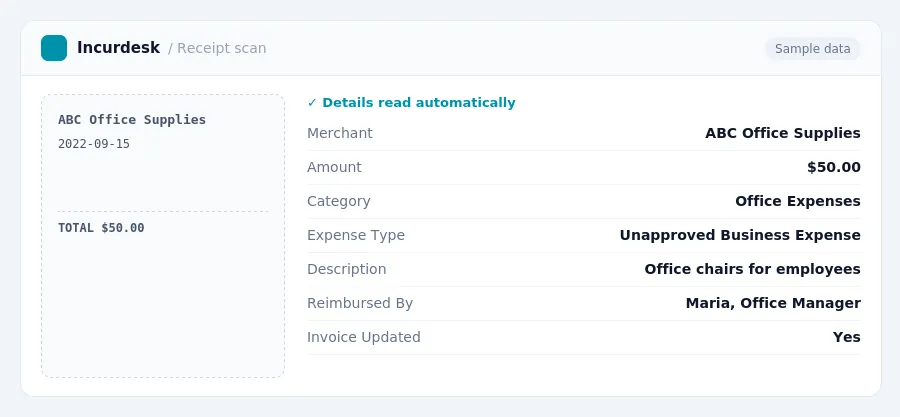
When an expense is deemed unapproved, the accounting firm must rebill the client for the cost and update the client's invoice accordingly.
For instance, in California, accounting firms must reimburse employees for necessary business expenses, regardless of whether the expense is approved or not.
Here's a step-by-step guide to rebill unapproved expenses and update client invoices:
- Identify the unapproved expense and the corresponding client invoice.
- Calculate the amount to be rebilled, which is the full cost of the unapproved expense.
- Update the client invoice by adding the rebilled amount and providing a clear explanation for the change.
- Notify the client in writing of the updated invoice and the reason for the change.
- Document the changes in the firm's financial records, including the updated invoice and any supporting documentation.
Keeping this simple: Incurdesk turns submitted expenses into clean expense reports. It is built for small accounting teams. Try it free.
Stop losing 4+ hours a week
30-day free trial · No credit card · Setup in 15 minutes