
How to Categorize Medical Practice Expenses in QuickBooks
A practical, data-backed guide to controlling costs and automating expense workflows.
With the right expense management tools, like healthcare expense management for under $10/user (2026), businesses can stay organized and avoid costly errors. For a complete overview, see our expense management guide.
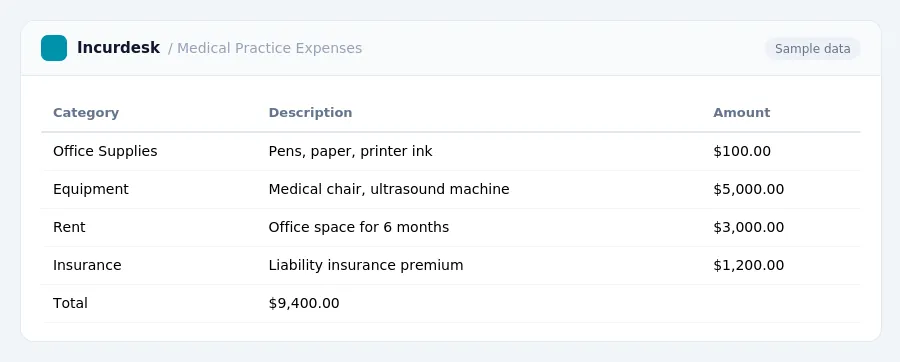
Set Up a Chart of Accounts in QuickBooks
When setting up your medical practice in QuickBooks, it's essential to create a comprehensive Chart of Accounts that accurately reflects your business expenses. This will help you track and categorize your expenses, ensuring accurate financial reporting and tax compliance.
Start by creating a Chart of Accounts that includes the following:
- Assets (e.g., cash, accounts receivable, equipment)
- Liabilities (e.g., accounts payable, loans)
- Equity (e.g., owner's capital, retained earnings)
- Revenue (e.g., patient payments, insurance reimbursements)
- Expenses (e.g., salaries, rent, supplies)
When creating expense accounts, consider the following:
- Set up separate accounts for startup costs, such as market research and pre-opening advertising.
- Create accounts for equipment and furniture purchases, as these can be depreciated over time.
- Set up accounts for salaries, benefits, and payroll taxes, as these are essential business expenses.
- Consider setting up accounts for specific business activities, such as marketing and advertising, or professional fees.
Remember to review and update your Chart of Accounts regularly to ensure it accurately reflects your business expenses and financial situation.
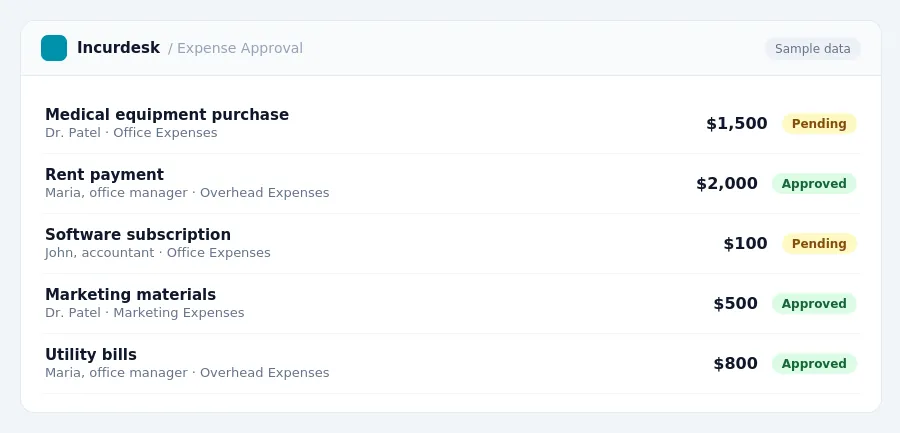
Categorize Medical Practice Expenses
- Medical expenses are costs for the diagnosis, cure, mitigation, treatment, or prevention of disease, or for affecting any part or function of the body. This includes prescription drugs, surgeries, dental and vision care, and medical equipment.
- You can use the simplified method, which allows $5 per square foot, up to 300 sq ft, or the actual expense method.
- Keep track of these expenses to ensure you can claim them on your tax return.
- Remember to exclude expenses for general health purposes, such as nutritional supplements and vitamins, unless they are prescribed by a doctor for a specific condition.
- Set up specific categories within QuickBooks for your medical practice expenses, such as equipment, supplies, rent, and utilities, to ensure accurate financial reporting and tax compliance.
- Regularly review and update your categories to ensure they are accurate and reflect the current needs of your medical practice.
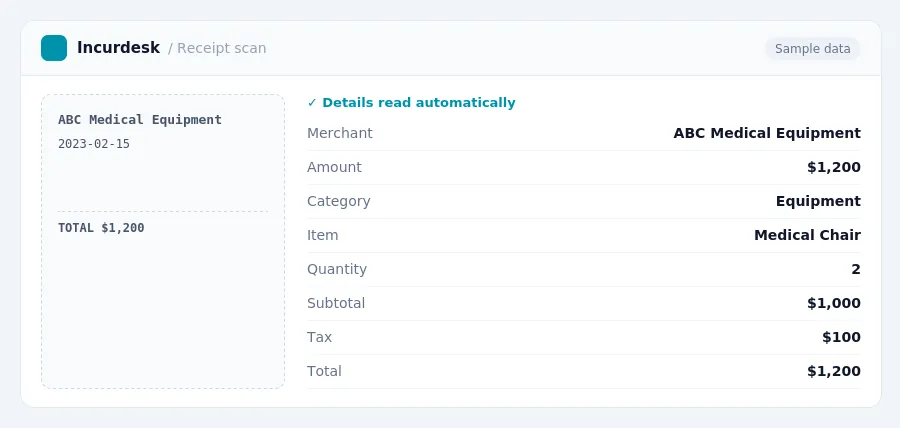
Track Insurance Income by Carrier
- To track insurance income by carrier, create separate accounts in QuickBooks for each insurance provider. This will allow you to accurately report income from each carrier on your tax return. For example, you might create accounts such as "Blue Cross Income," "UnitedHealthcare Income," and "Medicare Income." This will also help you to track the amount of income you receive from each carrier, which can be useful for billing and collections purposes.
- Make sure to set up the accounts correctly by following these steps: Create a new account in QuickBooks, select "Income" as the account type, and choose "Other Income" as the account subtype. Then, enter the name of the insurance carrier in the account name field. This will create a new account that you can use to track income from that carrier.
- Once you have created the accounts, you can start tracking income from each carrier. You can do this by going to the "Chart of Accounts" in QuickBooks, selecting the account for the carrier, and entering the income amount.
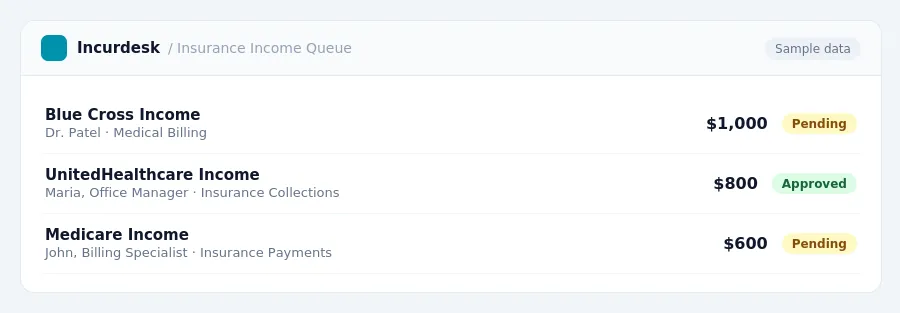
Reconcile Bank and Credit Card Accounts
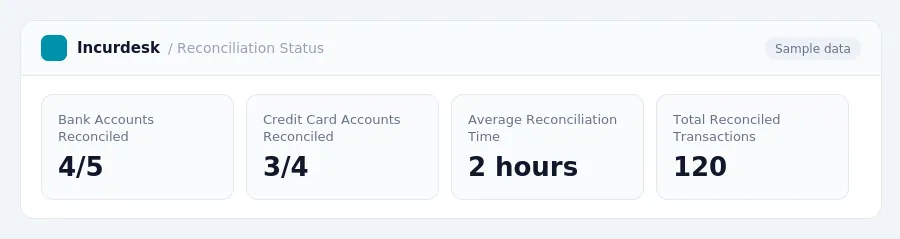
- Reconcile your bank and credit card accounts in QuickBooks each month to ensure data integrity and avoid year-end clean-up. This involves verifying that all transactions are accurately recorded in QuickBooks, and that your account balances match the statements from your bank and credit card companies.
- To reconcile your accounts, go to the "Reconcile" feature in QuickBooks and select the bank or credit card account you want to reconcile. Enter the statement date, ending balance, and any fees or interest charged.
- QuickBooks will then display a list of transactions that are not yet reconciled. Review this list carefully to ensure that all transactions are accurately recorded and that there are no errors or discrepancies.
- Once you have verified that all transactions are accurate, select the "Reconcile Now" button to complete the reconciliation process.
Remember to reconcile your bank and credit card accounts regularly to ensure that your financial records are accurate and up-to-date.
Deduct Business Expenses on Schedule C
- When filing your tax return, you'll need to deduct your legitimate business expenses on Schedule C. This includes expenses like professional liability insurance, office supplies, and continuing education. Keep accurate records of your expenses and make sure to itemize them on Schedule C. If you have any questions or concerns, consult a tax professional for guidance.
- This includes expenses like rent, utilities, and equipment. You can also deduct travel expenses related to your medical practice, as long as you have receipts and documentation to support your claims.
- When calculating your business expenses, make sure to include any expenses that you've incurred, regardless of whether you've paid them yet. This includes expenses like rent, utilities, and equipment that you've purchased on credit. You can also deduct any expenses that you've prepaid, such as insurance premiums or rent.
- When filling out Schedule C, make sure to use the correct codes and categories for your business expenses. Make sure to use these codes and categories to ensure that your expenses are properly accounted for.
- Finally, make sure to keep accurate records of your business expenses throughout the year. This includes receipts, invoices, and bank statements. Keep these records organized and easily accessible, as you'll need to provide them to your tax professional when filing your tax return.
Tax rules, limits and rates change. Confirm current figures with the IRS or your accountant before you file.
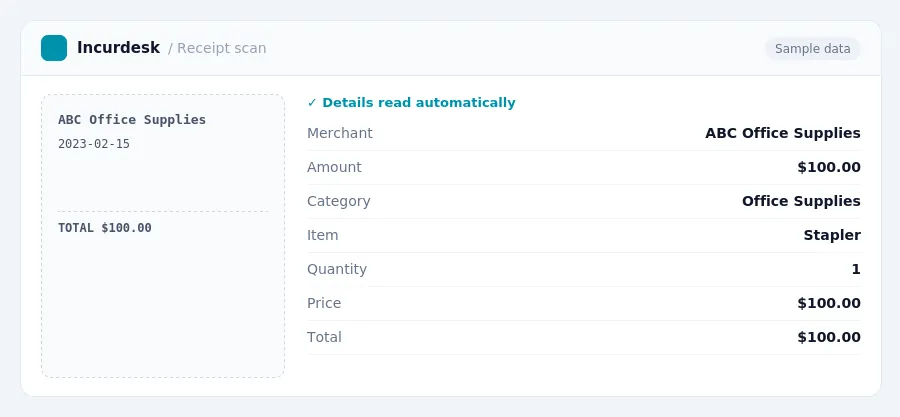
Keeping this simple: Incurdesk exports your expenses as a CSV your accountant can import into QuickBooks. It is built for small healthcare teams. Try it free.
Stop losing 4+ hours a week
30-day free trial · No credit card · Setup in 15 minutes